These days, it seems that every bit of technology comes in a wireless version, able to connect to your home network via WiFi: notebooks, printers, mobile phones, even home theatre.
This article discusses security on WiFi networks, ie those that you can set up within your home or office to share your existing internet connection. These work within say a 25 metre radius of the wireless router. (You can also purchase a “3G” wireless dongle, which will connect you to the internet via the mobile phone network – these will be discussed in a further blog post).
It’s easier than ever to set up a WiFi network: many Internet providers will send you a wireless-capable modem or router when you sign up. However, they may not supply it in an ideal state of security. Straight out of the the box, there are a couple of security issues in most routers.
Why does this even matter?
Being wireless, there’s every possibility that you and the people you share your home with, are not the only ones who can see your wireless network. Anyone who is within range, can potentially use your wireless connection. You might have noticed this when connecting your own WiFi devices – there may be several networks within range at any given time. Any of those that aren’t shown with a padlock icon, are potentially open for connections by anyone passing by. This matters for two reasons:
- they can use for free the internet connection that you are paying for.
- they might put it to uses that you would not – downloading movies illegally, downloading unsavoury content, selling weapons to the Taliban etc
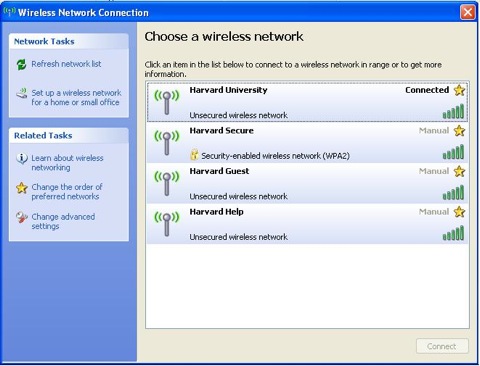
Example list of wireless networks
You will note on this example list that only one of the networks is listed as “Secured”. Harvard University would be doing this deliberately, to enable casual websurfing by students and visitors. At home, this is less of a good idea as it’s hard to allow only Internet access.
What are the security pitfalls to look out for then?
There are three considerations in regard to wireless security:
- Your router’s administrator password may not be set, or may be set to a default value, known to many. There are even lists of these on the internet.
- Your wireless connection may not have a password set on it, so anyone passing by may connect.
- The encryption on the wireless connection may be at a low level, meaning that anyone with the right tools can find out both of the above two passwords easily.
Most Internet providers now supply an install CD which will help people set up options 2 and 3. Most connections that I see in client setups do have a wireless password on them, and most have a reasonable level of wireless encryption (items 2 and 3) but unfortunately most also have the default administrator password still in place. I’ll discuss how to check the admin password; beyond that point, every router is different. Here in Sydney, I don’t see too many completely unsecured networks, but I see a lot with the default admin password.
As an experiment, try the following from your computer:
- ensure your computer is connected to your home network.
- open a web browser, be it Chrome, Internet Explorer, Firefox, Safari etc
- click in the address bar and type in each of the following, in turn, pressing enter after each one. When you get a popup asking for a password, you’ll know you have the right address:
192.168.1.254
192.168.1.1
192.168.0.1
10.1.1.1
- You should eventually see a screen something like this (exact appearance depends on your router brand):
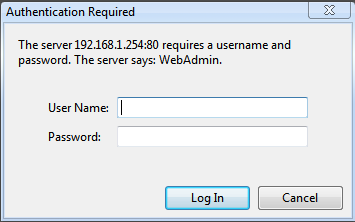
Example router login screen
Now, try the following User name and password combinations and see if any of them work:
- admin / admin
- admin / password
- admin / private
- admin / (blank, ie no password at all)
You will know you have succeeded in guessing the password, if you get beyond the login screen to a configuration screen showing the make and model of your router:

If you have gotten this far, then your router is not really secured and it is definitely worth having your wireless setup checked out further to ensure the rest of it is secure.
A good repairer will also check out the software in the router to see if there is a newer version available – sometimes this make connections more faster and reliable.
If you enjoyed this article, please consider sharing it!


